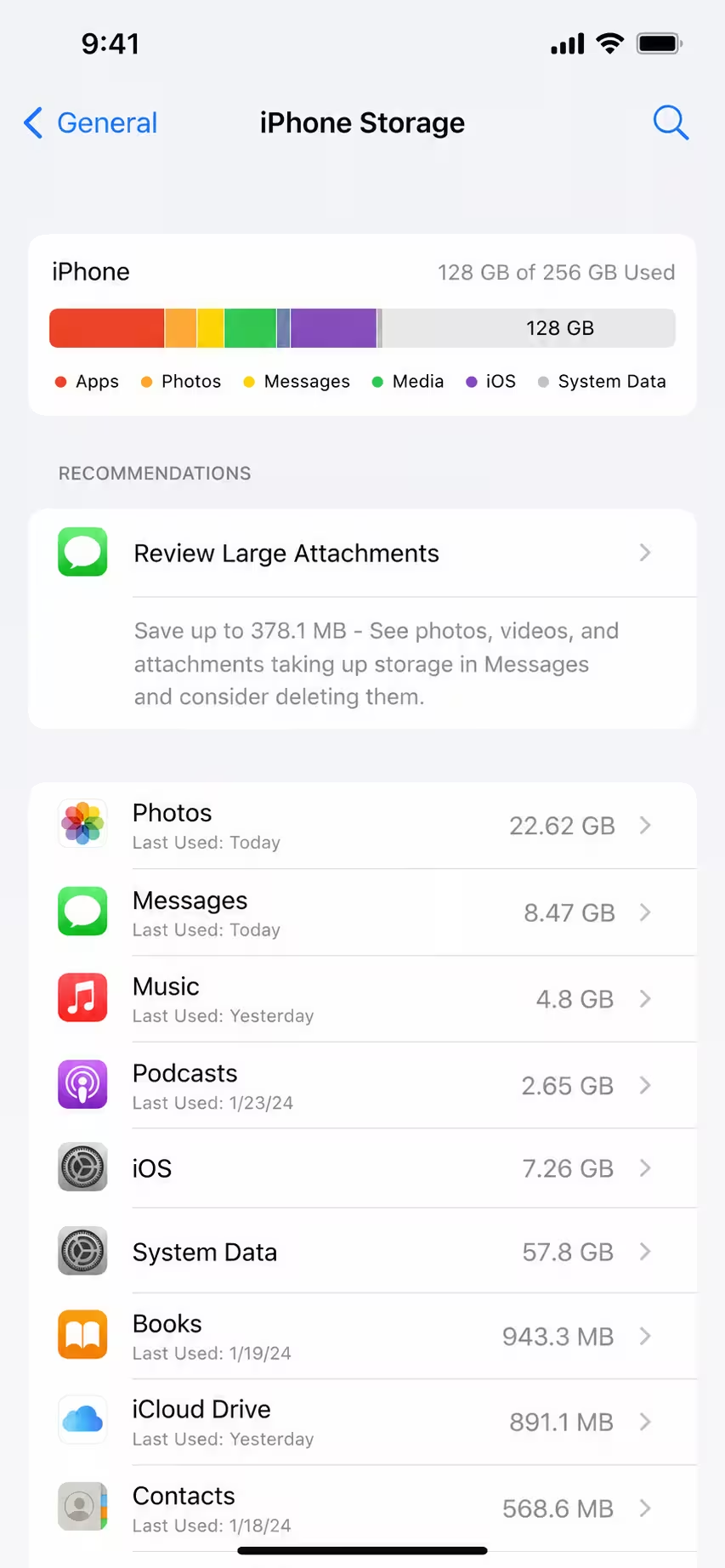
Running low on iPhone storage is a pain. Many users see a ‘System Data’ section. It takes up a lot of space. This guide shows how to clear system data iPhone. You will not lose your apps.
The short answer is simple. You cannot delete all of it. But you can greatly reduce it. This helps free up huge space. It makes your phone run better.
Why iPhone System Data Gets So Big
Your iPhone stores many things. It keeps temporary files. These are caches, logs, and updates. They build up over time.
Also, streaming apps save data. Safari keeps old website info. Even deleted apps can leave traces.
Here’s the thing. Apple designed iOS to manage this. But sometimes it gets out of hand. This means you need to step in.
For instance, some reports show iOS 27 also has this issue. Even with smart new features. So, knowing these steps is key.
How to Clear System Data on iPhone: Step-by-Step
You can use a few key methods. Each one targets a different part of the problem. Follow these steps for the best results.
1. Clear Safari Cache and Website Data
Safari often holds a lot of data. It saves info from sites you visit. This can grow very large.
To fix this, go to Settings. Then scroll down to Safari. Tap ‘Clear History and Website Data’. This will remove old browser info.
Keep in mind, this logs you out of websites. But it cleans up a lot. It is a quick win for storage.
2. Offload Unused Apps
This is a smart way to save space. You can remove an app. But you keep its documents and data. This means you won’t lose your game saves.
Go to Settings. Tap ‘General’. Then go to ‘iPhone Storage’. Find apps you do not use often. Tap ‘Offload App’.
This frees up app space. It leaves your data safe. You can easily reinstall the app later.
3. Delete Large Message Attachments
Messages can take up much space. Especially photos and videos. They add up fast over time.
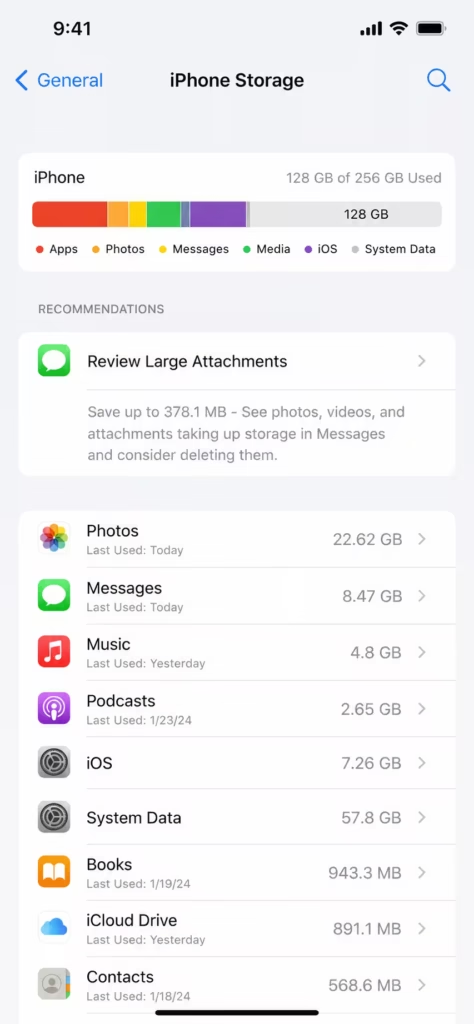
Go to Settings. Tap ‘General’. Then ‘iPhone Storage’. Find ‘Messages’. Tap ‘Review Large Attachments’.
You can then delete them. This is a very effective method. It helps clear system data iPhone.
4. Backup and Restore Your iPhone
This is the most powerful fix. It completely resets system data. It puts your phone back to new.
First, back up your iPhone. Use iCloud or your computer. Make sure the backup is complete. You can learn more about iCloud backup here.
Then, erase your iPhone. Go to Settings. Tap ‘General’. Then ‘Transfer or Reset iPhone’. Choose ‘Erase All Content and Settings’.
After that, restore from your backup. This rebuilds iOS. It often gets rid of all bloated system data. This method works wonders.
The Future of iPhone Storage Management
Apple is always working on iOS. They want to make it better. We may see new tools soon.
Perhaps future iOS versions will manage system data more smartly. Maybe upcoming iPhones will have better ways. We hope for more direct controls.
In fact, new AI features might help too. They could clean up files. This would happen in the background. Think of Agentic AI in smartphones helping out.
Until then, these steps are your best bet. They keep your storage clear. And they help your iPhone run fast.
Expert Opinion: Keeping Your iPhone Lean
Let’s be honest. iPhone storage is precious. Especially for new models. Even with big capacities.
Maintaining your device is key. Regular clean-ups prevent slowdowns. They ensure smooth daily use.
Also, don’t forget photo management. Use iCloud Photos. It saves space on your device. This keeps your phone feeling new.
This is similar to how you manage space on a new laptop in 2026. Good habits matter.
FAQ: Your iPhone System Data Questions Answered
What is ‘System Data’ on iPhone?
It includes temporary files. These are caches, logs, and system files. They help iOS run smoothly.
However, these files can grow too large. They take up valuable storage space. This happens over time.
Can I totally delete ‘System Data’?
No, you cannot delete all of it. Some system data is vital. It is needed for your iPhone to work.
But you can greatly reduce its size. Use the methods in this guide. This will free up much space.
Does deleting apps clear System Data?
Deleting apps helps. It removes the app itself. But it might not clear all related data.
Offloading apps is better. It keeps your app data. It just removes the app binary. This saves space.
How often should I clear system data?
You should check it now and then. Maybe every few months. Or when you notice low storage.
Regular maintenance helps. It keeps your iPhone running well. It stops data from building up.
What about third-party cleaning apps?
Be careful with these. Some are not safe. They might even harm your phone.
Apple does not support them. Stick to official methods. These are built into iOS. You can check GSMArena for more iPhone info.
Final Verdict: Reclaim Your iPhone Storage Now
Running out of space is frustrating. But you can fix it. You now know how to clear system data iPhone.
Use these simple steps. They will free up huge space. Your iPhone will thank you for it.
So, try these tips today. Get your storage back. Enjoy a faster, cleaner iPhone.
What do you think? Drop your thoughts in the comments.